
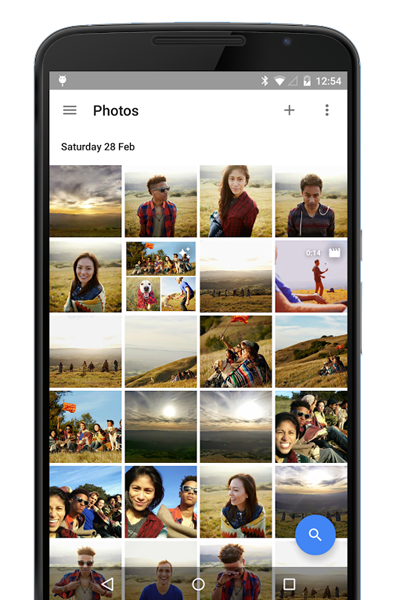
What is the best way to organise photos on my phone? Be honest: how many photos are on your phone right now? For most people it’s thousands — a chaotic river of screenshots, duplicates, blurry shots, receipts, memes and genuine treasures, all jumbled together. Finding one specific photo means endless scrolling and growing despair. I’ve been there (12,000 photos, zero organisation), and I fixed it with a system that’s simple enough to actually maintain. Here’s the whole thing.
Step 1: The great purge (the satisfying part)
Before organising, reduce. An hour of purging makes everything after it easier:
- Delete screenshots you don’t need. QR codes, memes, conversation screenshots from 2022 — be ruthless. (Keep the ones with genuinely useful info.)
- Kill duplicates and bursts. Ten near-identical shots of the same sunset? Keep the best two. Apps like Gemini Photos (iPhone) or Files by Google find these fast.
- Remove the blurry and accidental. Pocket photos, motion-blurred disasters, photos of the floor — they add nothing.
- Clear out receipts and documents you’ve already dealt with — or better, move them to a proper scanning workflow (see our guide on scanning documents with your phone).
- Empty “Recently Deleted” afterwards to actually reclaim the space.
Most people delete 20–30% of their library in this step. It feels amazing.
Step 2: The album system that actually works
Forget elaborate folder hierarchies — you’ll never maintain them. The system that works has three layers:
- Favourites (ongoing). The single most useful habit: favourite great photos as you take them (heart icon on iPhone, star on Android). Your Favourites album becomes an automatic “best of” collection — the photos worth printing, framing or showing people. Takes one tap per photo, pays off forever.
- Event albums (as they happen). Create an album for each significant event — “Cornwall Holiday 2026”, “Mum’s 60th”, “Kitchen Renovation”. Add the relevant photos the same week, while you remember. Ten albums a year is plenty; nobody needs an album for “Tuesday”.
- People and pets (automatic). Both iPhone Photos and Google Photos group faces automatically — name the important people once, and the app maintains the collections forever. Enormous payoff for tiny setup effort.
That’s it. Favourites + events + automatic people albums covers 95% of real-world photo-finding needs.
What is the best way to organise photos on my phone using search?
Modern photo apps have remarkable AI search — use it instead of manual sorting for everything else:
- Google Photos: search “beach”, “birthday cake”, “dog”, “receipt”, “screenshot” — it finds them. Search by date, location, or even text visible in the photo.
- iPhone Photos: the search tab handles scenes, objects and categories similarly well.
- Screenshots and documents are auto-categorised (iPhone has dedicated albums for these under Media Types) — stop filing them manually.
The insight: search replaces filing. You don’t need an album for every category when you can type “passport” and find it instantly. Reserve manual albums for events and favourites — the things with emotional meaning — and let search handle the rest.
Step 3: Back it all up (organisation is worthless without it)
A beautifully organised library on a phone with no backup is a tragedy waiting for a toilet drop. Set up automatic cloud backup — our guide on backing up photos to the cloud for free covers every option. Albums, favourites and people tags sync with the backup, so your organisation survives even if the phone doesn’t. And free up local space with optimised storage once backup is confirmed — see freeing storage without deleting photos.
Maintaining it: the 5-minute monthly habit
Organisation systems die from neglect, not complexity. Keep yours alive with almost no effort:
- Favourite as you go — one tap when you take a great shot. This is 80% of the system.
- Monthly 5-minute purge: delete the month’s screenshots, duplicates and duds. Set a recurring reminder.
- Create event albums promptly — within a week, while the event is fresh. A 30-second job that future you will thank you for.
- Annual review: once a year, scroll your Favourites and pick the year’s best 50–100. Print a few. Make a photo book (they’re cheap and make wonderful gifts). Photos you never look at might as well not exist.
What about the photos that matter most?
For irreplaceable photos — kids growing up, weddings, late relatives — go beyond the phone: keep copies in two places (cloud plus an external drive or second cloud service), print the truly precious ones (prints survive dead accounts and forgotten passwords), and share albums with family so copies exist in multiple households. Digital photos feel permanent and aren’t; a little redundancy is cheap insurance for memories.
Printing your favourites: photos deserve paper
Here’s the truth about digital photo libraries: photos you never look at might as well not exist. The antidote is print. Not everything — just the best. Once a year, pick 20–30 favourites and print them properly: high-street photo printing costs pennies per print, and online services deliver beautiful prints and photo books for £10–£30. A photo book of the year’s best shots makes an extraordinary Christmas gift (start in November, not December). Frame a few for the walls — your home should show your life, not just your taste in art prints. And involve the kids: letting them choose photos for their own album teaches them that memories are worth curating. The cloud is for safekeeping; paper is for living with. The best photo organisation system in the world ends with a handful of prints, not a perfectly tagged database nobody opens.
The bottom line
What is the best way to organise photos on my phone? Purge the junk, favourite great shots as you take them, create event albums promptly, let face-grouping and AI search handle the rest, back everything up automatically, and spend five minutes a month maintaining it. Simple beats comprehensive — the best system is the one you’ll actually keep using, and this one takes minutes, not hours.
Google Photos organisation help and Apple’s Photos guide cover the built-in tools.

Leave a Reply